
Custom reports
NightPOS comes with a powerful and easy-to-use reporting framework. The engine allows you to create new reports, such as tax reports, or balance sheets and income statements with specific groupings and layouts.
Important
Activate the developer mode to access the accounting report creation interface.
To create a new report, open the Accounting app and navigate to . From here, you can either create a root report or a variant.
Root reports
Root reports can be regarded as generic, neutral accounting reports. They serve as models on which local accounting versions are built. If a report has no root report, it is considered to be a root report itself.
Example
A tax report for Belgium and the US would both use the same generic version as a base and adapt it for their domestic regulations.
When creating a new root report, you need to create a menu item for it. To do so, open the report and, on that same report, click the (Actions) icon, then select Create Menu Item. Refresh the page; the report is now available under .
Note
Cases that require creating a new root report are rare, such as when a country’s tax authorities require a new and specific type of report.
Variants
Variants are country-specific versions of root reports and, therefore, always refer to a root report. To create a variant, select a generic (root) report in the Root Report field when creating a new report.
When a root report is opened from one of the accounting app’s main menus, all its variants are displayed in the variant selector in the top right corner of the view.
Example
In the following image, VAT Report (BE) is the variant of the root Generic Tax report.
Report lines
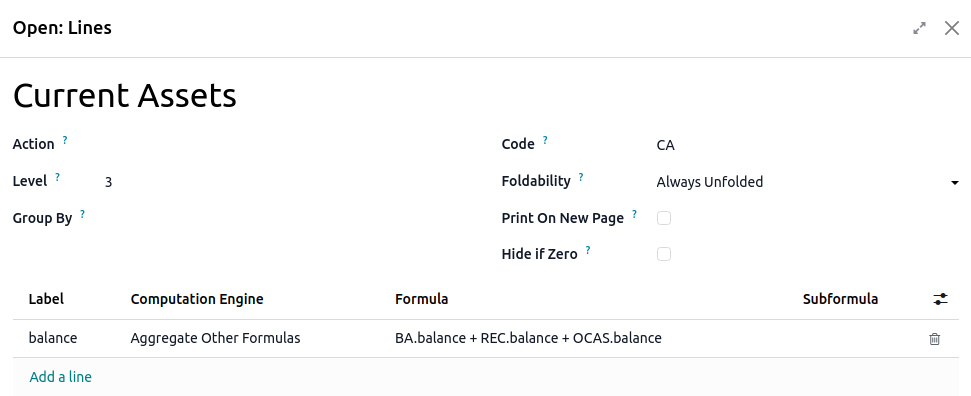
After having created a report (either root or variant), you need to fill it with report lines. You can either create a new one by clicking on Add a line, or modify an existing report line by clicking on it. All report lines require a Name, and can have an optional additional Code (of your choice) if you wish to use their value in formulas.
Expressions
Each report line can contain one or multiple expressions. Expressions can be seen as sub-variables needed by a report line. To create an expression, click on Add a line within a report line.
When creating an expression, you must attribute a Label used to refer to that expression. Therefore, it has to be unique among the expressions of each line. Both a Computation Engine and a Formula must also be indicated. The engine defines how your formula(s) and subformula(s) are interpreted. It is possible to mix expressions using different computation engines under the same line if you need to.
Note
Depending on the engine, subformulas may also be required.
‘NightPOS Domain’ engine
With this engine, a formula is interpreted as an NightPOS domain
targeting account.move.line objects.
The subformula allows you to define how the move lines matching the domain are used to compute the value of the expression:
sumThe result is the sum of all the balances of the matched move lines.
sum_if_posThe result is the sum of all the balances of the matched move lines if this amount is positive. Otherwise, it is
0.sum_if_negThe result is the sum of all the balances of the matched move lines if this amount is negative. Otherwise, it is
0.count_rowsThe result is the number of sub-lines of this expression. If the report line has a group-by value, this will correspond to the number of distinct grouping keys in the matched move lines. Otherwise, it will be the number of matched move lines.
You can also put a - sign at the beginning of the subformula to reverse the sign of the
result.

‘Aggregate Other Formulas’ engine
Use this engine when you need to perform arithmetic operations on the amounts obtained for other
expressions. Formulas here are composed of references to expressions separated by one of the four
basic arithmetic operators (addition +, subtraction -, division /, and multiplication *). To
refer to an expression, type in its report line’s code followed by a period . and the
expression’s label (ex. code.label).
Subformulas can be one of the following:
if_above(CUR(amount))The value of the arithmetic expression will be returned only if it is greater than the provided bound. Otherwise, the result will be
0.if_below(CUR(amount))The value of the arithmetic expression will be returned only if it is lower than the provided bound. Otherwise, the result will be
0.if_between(CUR1(amount1), CUR2(amount2))The value of the arithmetic expression will be returned only if it is strictly between the provided bounds. Otherwise, it will be brought back to the closest bound.
if_other_expr_above(LINE_CODE.EXPRESSION_LABEL, CUR(amount))The value of the arithmetic expression will be returned only if the value of the expression denoted by the provided line code and expression label is greater than the provided bound. Otherwise, the result will be
0.if_other_expr_below(LINE_CODE.EXPRESSION_LABEL, CUR(amount))The value of the arithmetic expression will be returned only if the value of the expression denoted by the provided line code and expression label is lower than the provided bound. Otherwise, the result will be
0.
CUR is the currency code in capital letters, and amount is the amount of the bound expressed in
that currency.
cross_report(xml_id | report_id)Used to match an expression from another report targeted by the xml_id or the report ID itself.
‘Prefix of Account Codes’ engine
This engine is used to match amounts made on accounts using the prefixes of these accounts’ codes as variables in an arithmetic expression.
Example
21Example
21 + 10 - 521
and 10, and subtracts the balance of the ones on accounts with the prefix 5.It is also possible to ignore a selection of sub-prefixes.
Example
21 + 10\(101, 102) - 5\(57)101, 102,
and 57.You can apply ‘sub-filtering’ on credits and debits using the C and D suffixes. In this
case, an account will only be considered if its prefix matches, and if the total balance of the
move lines made on this account is credit/debit.
Example
Account 210001 has a balance of -42 and account 210002 has a balance of 25. The formula
21D only matches the account 210002, and hence returns 25. 210001 is not matched, as its
balance is credit.
Prefix exclusions can be mixed with the C and D suffixes.
Example
21D + 10\(101, 102)C - 5\(57)21
if it is debit (D) and 10 if it is credit (C), but ignores prefixes 101, 102, and
subtracts the balance of the ones on accounts with the prefix 5, ignoring the prefix 57.To match the letter C or D in a prefix and not use it as a suffix, use an empty exclusion ().
Example
21D\()21D, regardless of their balance sign.In addition to using code prefixes to include accounts, you can also match them with account tags. This is especially useful, for example, if your country lacks a standardized chart of accounts, where the same prefix might be used for different purposes across companies.
Example
tag(25)If the tag you reference is defined in a data file, an xmlid can be used instead of the id.
Example
tag(my_module.my_tag)You can also use arithmetic expressions with tags, possibly combining them with prefix selections.
Example
tag(my_module.my_tag) + tag(42) + 1010C and D suffixes can be used in the same way with tags.
Example
tag(my_module.my_tag)CPrefix exclusion also works with tags.
Example
tag(my_module.my_tag)\(10)10.‘External Value’ engine
The ‘external value’ engine is used to refer to manual and carryover values. Those values
are not stored using account.move.line, but with account.report.external.value. Each of these
objects directly points to the expression it impacts, so very little needs to be done about their
selection here.
Formulas can be one of the following:
sumIf the result must be the sum of all the external values in the period.
most_recentIf the result must be the value of the latest external value in the period.
In addition, subformulas can be used in two ways:
rounding=XReplacing
Xwith a number instructs to round the amount to X decimals.editableIndicates this expression can be edited manually, triggering the display of an icon in the report, allowing the user to perform this action.
Note
Manual values are created at the date_to currently selected in the report.
Both subformulas can be mixed by separating them with a ;.
Example
editable;rounding=2‘Custom Python Function’ engine
This engine is a means for developers to introduce custom computation of expressions on a case-by-case basis. The formula is the name of a python function to call, and the subformula is a key to fetch in the dictionary returned by this function. Use it only if you are making a custom module of your own.
Columns
Reports can have an indefinite number of columns to display. Each column gets its values from the expressions declared on the lines. The field expression_label of the column gives the label of the expressions whose value is displayed. If a line has no expression in that field, then nothing is displayed for it in this column. If multiple columns are required, you must use different expression labels.
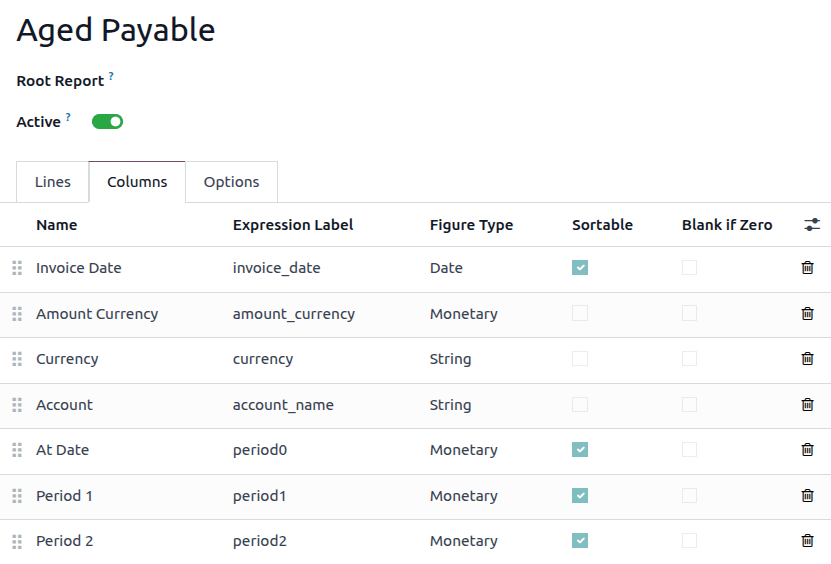
When using the period comparison feature found under the Options tab of an accounting report, all columns are repeated in and for each period.
Line grouping
Non-standard grouping is possible by adding or using existing fields on the Journal Item model, provided that the fields are related and non-stored.
Note
Grouping lines requires the report to have explicit report lines that can be edited. The deferred reports, for example, do not support grouping lines as they use dynamic lines that are generated.
Create a new field on journal item
To create a non-stored, related field in the Journal Item model, first go to , and click the (bug) icon, then click Fields. Click New to create a new field, and complete the following fields:
Field Name: a technical name for the field
Field Label: the label to be displayed for the field
Field Type: the type of field that this related field should point to
Stored: Leave this field unchecked as only non-stored fields can be used to group lines.
Related Model: If the field type is one2many, many2many, or many2one, select the model of the original field to group by.
Related Field Definition: the technical path to the field you want to group by
Example
To group by the sales team of the commercial partner, set the related field definition to
move_id.team_id.
Group lines
To group lines, go to the Lines tab of the desired report, click on the line you want to group, and edit the Group by field. Enter the technical name (Field Name) of the field to use as the grouping key.
Tip
To find a list of all the model’s fields and their technical names, go to , and click the (bug) icon, then click Fields. The technical name of each field is listed in the Field Name column.
Custom tax report setup
Report configuration
Tip
All technical terms and functions of NightPOS’s reports engine are explained in the previous sections of this page. We strongly recommend reading these sections before setting up a custom tax report.
To create a custom tax report, open the Accounting app, navigate to , then click New:
Enter a name for your report.
Select a Root Report.
Under the Availability field, select Country Matches, then select the Country matching your company.
Next, create a report line by clicking the Add a line. Once created, click that report line to configure it:
Click Add a line again to create an Expression and name it.
In the Definition tab, select a Computation Engine for that expression depending on the following scenarios:
In this scenario, your company uses tax grids:
Select Tax Tags as the computation engine. NightPOS uses this field to link the report line to your taxes.
In the Formula field, type your short grid identifier (e.g.,
vat_sales_base). NightPOS automatically generates the+and-variants of this tag for you to map inside .In the Subformula field, enter either
baseto report the untaxed amount, ortaxto report the actual tax amount collected/paid.
Repeat this process as necessary. Then, Save & Close.
Alternatively, you can:
Select Aggregate Other Formulas as the computation engine. NightPOS uses this field to perform math on lines already present in the report rather than scanning raw transactions.
In the Formula field, use basic algebra referencing your line codes (e.g.,
LINE_10 - LINE_20).
Repeat this process as necessary. Then, Save & Close.
In this scenario, your company does not use tax grids. Instead, it tracks everything strictly via General Ledger accounts:
Select Prefix of Account Codes as the computation engine: NightPOS uses this for lines that need to pull financial totals. Instead of looking for transaction tags, NightPOS pulls live balances directly from your chart of accounts.
In the Formula field, type the starting digits of the accounts you want to track, (e.g.,
40will pull the combined total of all revenue accounts starting with400000,401000, etc.).
Repeat this process as necessary. Then, Save & Close.
Alternatively, you can:
Select Aggregate Other Formulas as the computation engine. NightPOS uses this to calculate subtotals, net tax, or grand totals by adding or subtracting your other report lines.
In the Formula field, use basic algebra referencing your line codes (e.g.,
LINE_10 - LINE_20).
Repeat this process as necessary. Then, Save & Close.
In this scenario, your company requires advanced filtering, manual user overrides, or complex algorithmic logic that standard tags and account prefixes cannot handle:
Select NightPOS Domain as the computation engine: NightPOS uses this to bypass tax tags entirely and filter raw journal items (
account.move.line) using standard NightPOS search syntax.In the Formula field, enter a valid domain starting with brackets to isolate tax-exempt transactions for specific partner categories.
Alternatively, you can:
Select External Value as the computation engine. NightPOS uses this to log manual overrides or historical carryover values.
In the Formula field, type either
sum(to add all manual values together over multi-period reports) ormost_recent(to display only the latest value).In the Subformula field, type
editableto display an edit icon on the live report, allowing users to modify the value manually. Additionally, you can round numbers by typingrounding=x.
Alternatively, you can:
Select Custom Python Function as the computation engine. NightPOS uses this as an execution engine to run specific calculations through backend coding when rules involve progressive brackets, loops, or multi-tier thresholds.
In the Formula field, enter the exact technical name of the Python method defined in your custom localization module.
Repeat this process as necessary. Then, Save & Close.
In the Options tab of an Expression, populate the Carry Over To field with a formula to always carry over balances or only carry them over when the amount is negative. Leave this field blank if you do not want to use this feature.
Example
if_below(EUR(0))Tax configuration
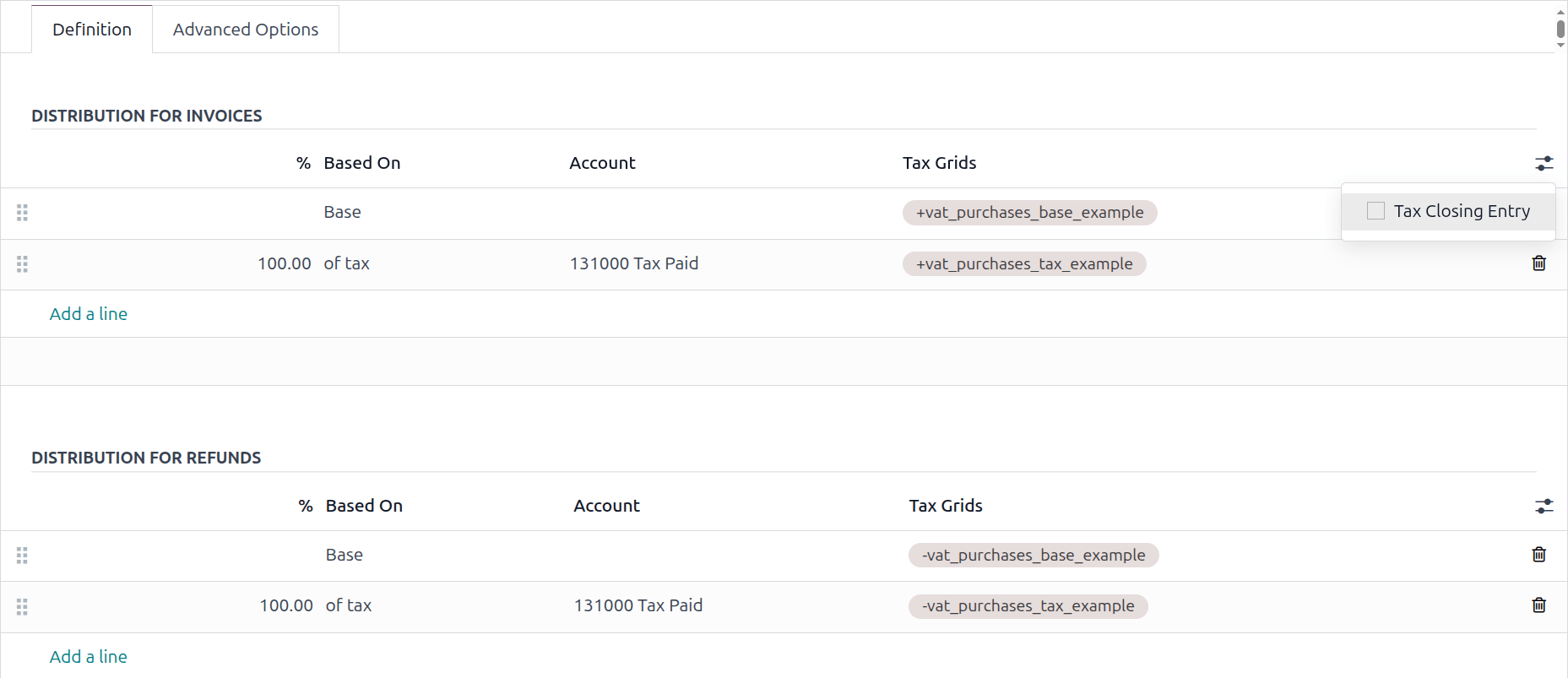
Next, go to and click New to create and configure new taxes for your custom tax report. Create your Sales and Purchases taxes, and populate the Tax Grids for all taxes using the matching tax grids you created earlier. Finally, make sure to specify both a tax payable and tax receivable account for each tax.
Example
Closing entry
To close taxes, a tax group must be specified on each tax used in your custom tax report. To do this, open the Accounting app, navigate to , open a tax that requires a tax group, click the Advanced Options tab, and select a group in the Tax Group field. Once assigned, click the (right arrow) icon and set both a Tax Payable Account and a Tax Receivable Account.
Tip
When everything has been set up, make sure to test your report by creating invoices, bills, and credit notes using the taxes specific to that report. Finally, test the closing entry itself.
If you want to hide a specific account from displaying in the tax closing entry, go to , select the tax, and click the (settings adjust) icon. From there, check the Tax Closing Entry box to adjust its visibility.
See also