
NightPOS — Intelligent Business Platform
NightPOS is a comprehensive, cloud-ready business management platform designed for retail, restaurants, cafés, nightclubs, and modern service businesses. The system enables seamless data flow across all departments — from the cashier counter to accounting, inventory, and HR — in a single unified system.
Restaurant |
Café / Bar |
Retail |
Pharmacy |
Nightclub |
Warehouse |
Services |
Multi-branch |
NightPOS Highlights
All-in-one platform — POS + Inventory + CRM + Accounting + HR in one system
Cloud SaaS ready — Deploy on cloud or on-premise servers
Multi-branch management — Centralised real-time control across all locations
Restaurant grade — Design floor plans, manage tables, and send orders to the kitchen
Hardware integration — Barcode scanners, label printers, fiscal receipt printers, and payment terminals
Mobile and tablet support — Manage your business from anywhere
Enterprise-grade security — Role-based access control and comprehensive audit logs
Introduction to NightPOS
Getting Started
Opening the POS — Cashier Login
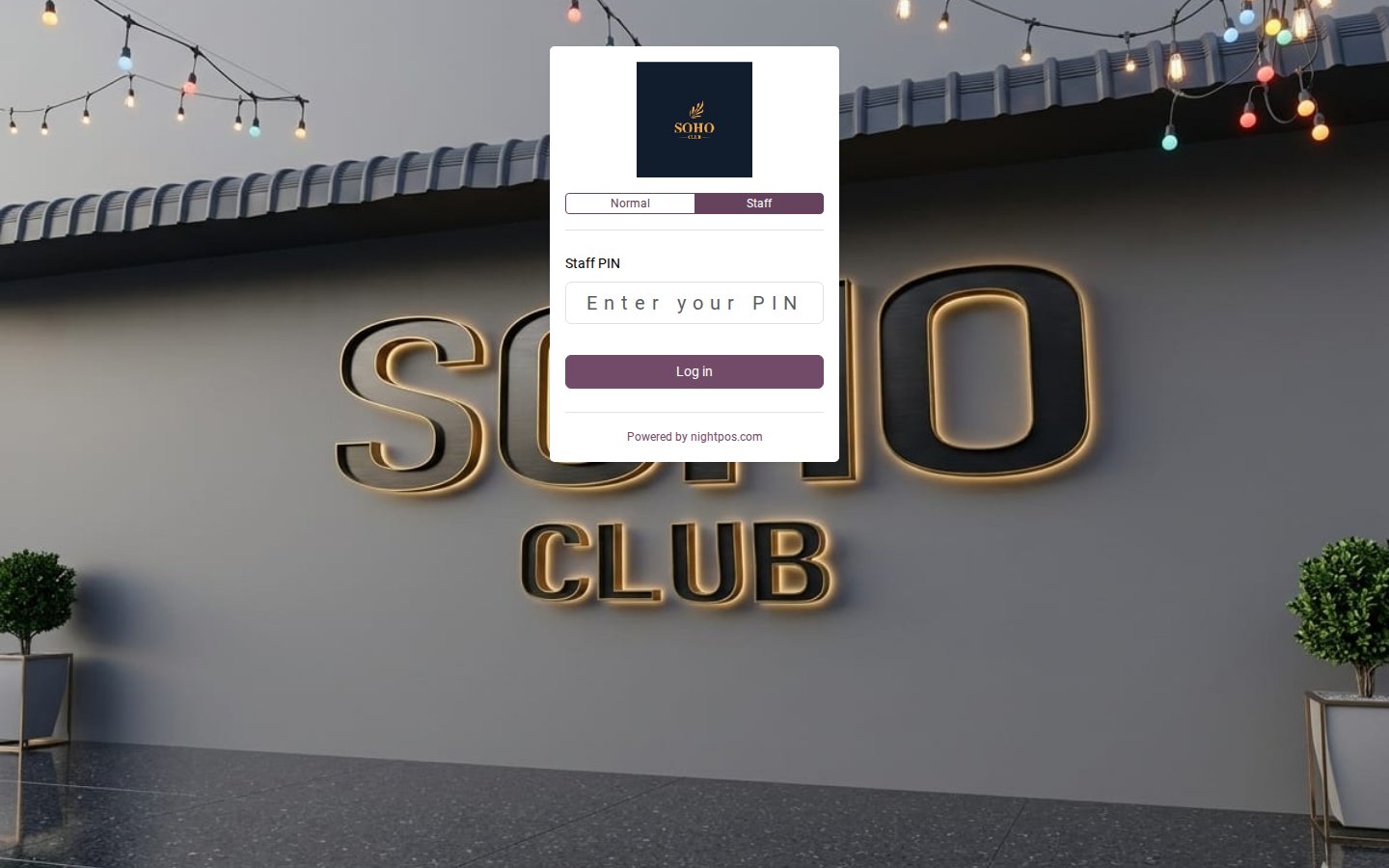
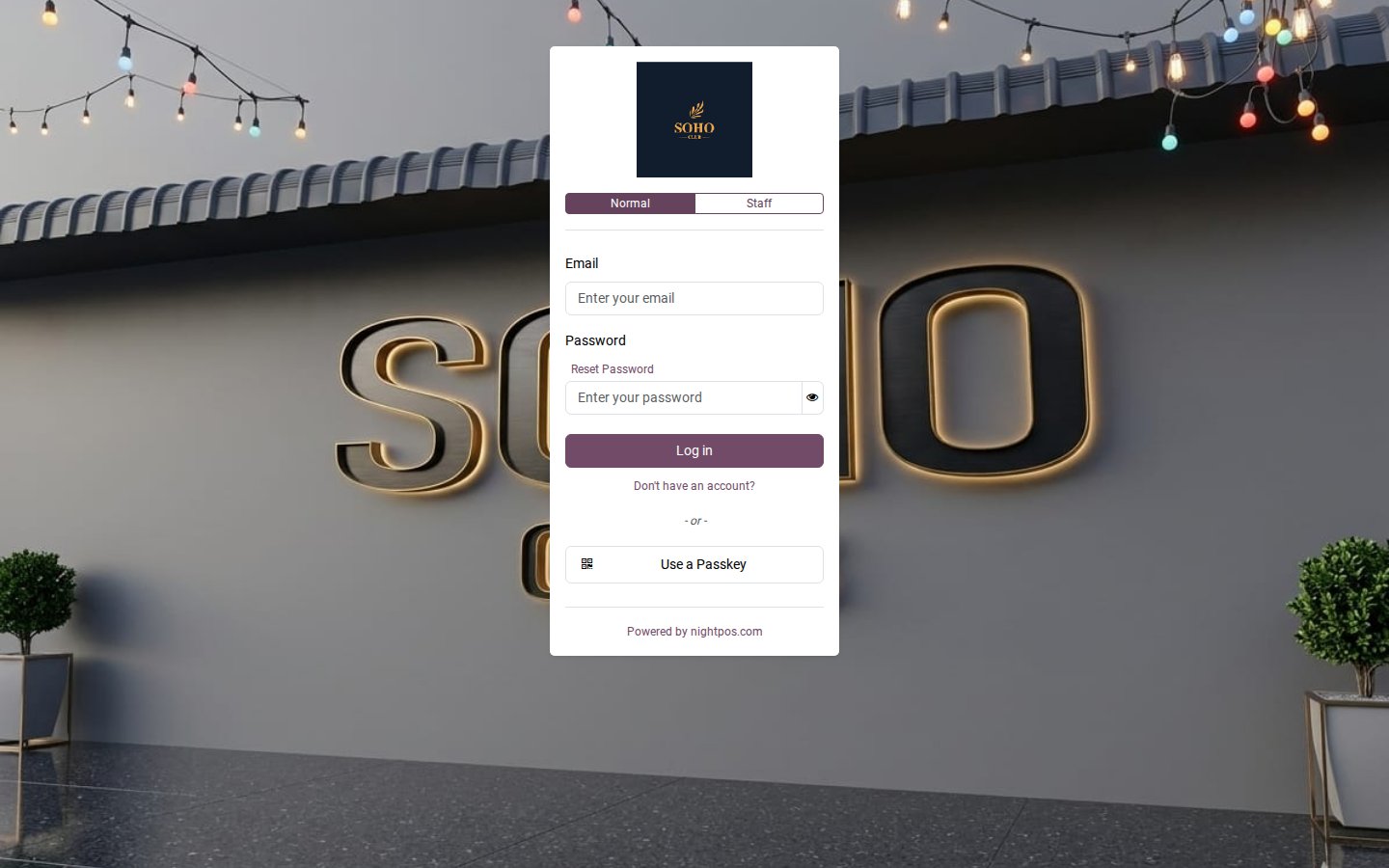
Open a web browser and navigate to your NightPOS URL. The cashier login screen appears automatically with two login modes:
Tab |
User |
How to log in |
|---|---|---|
Standard |
Managers and administrators |
Enter email and password, then tap Log In |
Employee |
POS cashiers with a PIN |
Enter the employee’s numeric PIN, then tap Log In |
Tip
For daily cashier use, set up employee PIN accounts via Point of Sale → Settings → Employees. Entering a PIN on the touch screen is faster.
Admin (Back-Office) Login
For configuration, reports, and system customisation, use the Standard tab with admin credentials. Admin access is for setup and reports only. For daily cashier use, use dedicated cashier PIN accounts.
Employee Login Types
NightPOS supports two types of employee accounts:
Manager / Administrator — Full access to settings, reports, and all modules
Cashier PIN — Restricted to POS sales only; cannot access settings
POS Dashboard
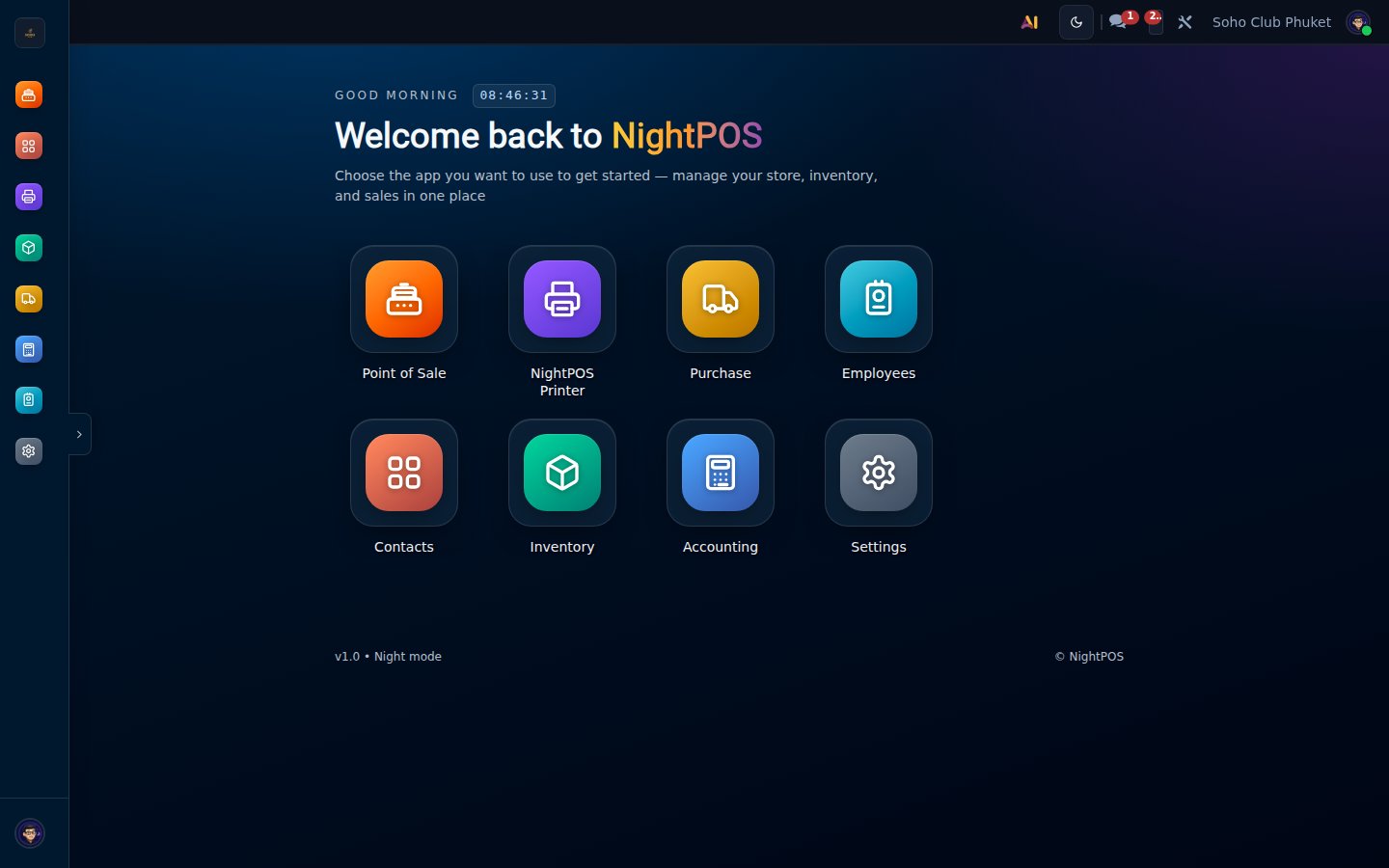
After logging in, you see the NightPOS home screen showing all apps. Click Point of Sale to manage your cash registers.
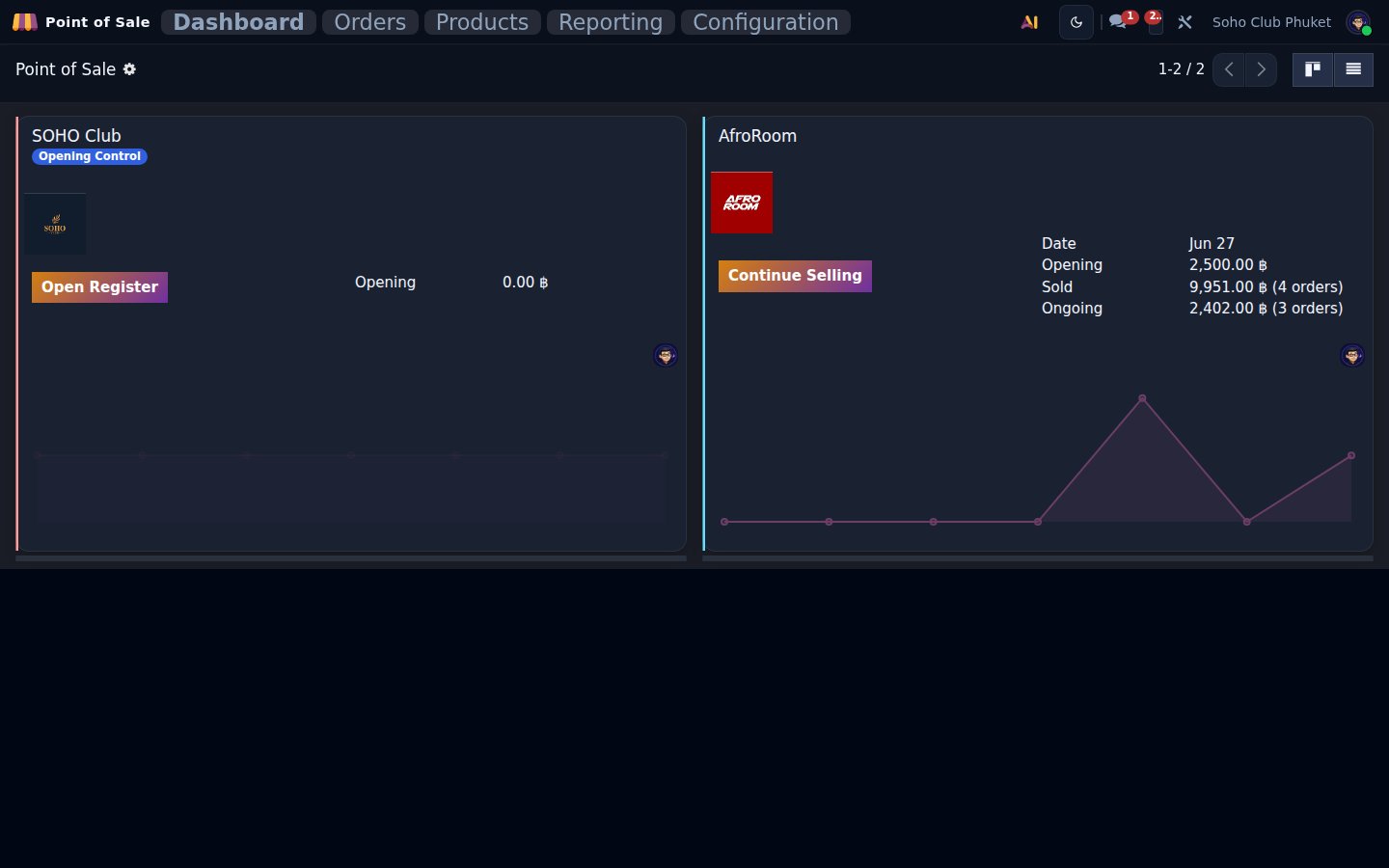
The POS dashboard shows all configured cash registers with their current status:
Open Register — No active session. Click to create a new session and set the opening cash balance
Continue Selling — Session is still active. Click to resume selling
The top navigation bar provides access to:
Menu |
Purpose |
|---|---|
Dashboard |
Return to the POS register list at any time |
Orders |
View all past and current POS orders |
Products |
Manage products available in the POS |
Reports |
Sales reports, session summaries, and statistics |
Settings |
POS configuration, floor plans, printers, employees, and product categories |
POS Essentials
POS Screen Overview
The live POS interface is divided into distinct areas:
Area |
Description |
|---|---|
Top Navigation |
Tables / Register / Orders tabs, active table badge, search bar, and menu (☰) |
Left Panel — Order Lines |
Current order: quantity, product name, and price per line item, with total at the bottom |
Right Panel — Product Grid |
Browse and tap products by category tab. Products display images and prices |
Bottom-Left Bar |
Customer name, notes, course, and more actions menu (⋮) |
Bottom Right |
New button (new order) and Payment button to complete a transaction |
Adding Products to an Order
Tap a Category tab on the product grid to filter products
Tap a product tile — it is added to the order with quantity 1
To change quantity: tap the order line, then use the numpad or press + / −
To remove a line: select it and press the delete button or reduce quantity to 0
Modifiers and Variants
Some products have modifiers (e.g. size, add-ons). When added to an order, a pop-up appears for you to select variant options before confirming.
Discounts and Price Changes
Apply a percentage discount or set a fixed price on any order line
A manager PIN may be required for discounts above a configured threshold
Payment
Tap Payment (purple button, bottom right)
Select payment method: Cash, Card, QR Code, or Split Payment
For cash payments, enter the amount received — the system calculates change automatically
Tap Validate to complete the transaction and print the receipt
Receipts
Receipts print automatically after payment is validated
Customers can also receive a digital receipt by email if their email is saved
Receipts can be reprinted via Orders
Cancellations and Refunds
Cancel an Order (before payment)
Select the order and tap Delete Order, or reduce all quantities to zero.
Refund a Paid Order
Go to Orders and find the original transaction
Tap Return Products and select the items to refund
Choose the refund method and confirm
Closing a POS Session
Open the hamburger menu (☰) and tap Close
Enter the actual closing cash amount
Review the session summary (sales, payments, and discrepancies)
Tap Close Session to finalise
Table and Floor Management (Restaurant Mode)
NightPOS includes full restaurant management with an interactive floor plan:
Drag-and-drop floor plan editor — Design your dining area layout
Colour-coded table status — Available, Occupied, Reserved
Order splitting and merging — Flexible for large groups
Course-by-course ordering — For fine dining restaurants
Table transfer — Move orders between tables easily
Kitchen Display System (KDS) — Connected for kitchen order routing
Platform Overview
System Modules
NightPOS is built on a modular architecture. Start with the core POS and expand to a full ERP:
Module |
Core capabilities |
|---|---|
Point of Sale |
Multi-terminal POS, offline mode, session management, and cashier accountability |
Inventory |
Real-time stock, multi-warehouse, barcode scanning, and automatic reorder |
CRM |
Sales pipeline, customer history, lead management, and marketing integrations |
Accounting |
Thai localisation, real-time P&L, invoicing, and tax management |
HR & Payroll |
Employee records, attendance, leave management, and payroll processing |
Purchasing |
Purchase orders, vendor management, GRN, and three-way matching |
Manufacturing |
Bills of materials, production orders, work orders, and quality control |
eCommerce & Website |
Online store, CMS, SEO, integrated with inventory and POS |
Security and Access Control
Granular Role-Based Access Control (RBAC) — Configurable per module and action
Cashier mode — Restricts POS staff to sales functions only
Manager PIN override — For discounts, refunds, and session closure
Two-Factor Authentication (2FA) — For administrator accounts
Full audit logs — All user actions recorded non-repudiably
Data encryption — HTTPS/TLS 1.3 in transit; database encryption at rest
GDPR compliant — Customer data export and deletion tools
Contact and Support
© 2025 NightPOS · Intelligent Business Platform · All rights reserved