
Time off types
One of the first things that requires configuration in the Time Off app are the time off types.
When employees request time off, they must specify the type of time off they are requesting, such as sick time, vacation time, etc. The time off type determines several things, including how the request is made (hours, half days, or days), and how it is approved.
To view the currently configured time off types, navigate to . The time off types are presented in a list view.
The Time Off app comes with six preconfigured time off types: Paid Time Off, Sick Time Off, Unpaid, Compensatory Days, Extra Time Off, and Extra Hours. These can be modified to suit business needs, or used as-is.
Create time off type
To create a new time off type, navigate to . From here, click the New button to reveal a blank Time Off Type form. Then, enter the following information on the form.
Note
The only required configurations on the time off type form are the following fields:
Time Off Type
Duration Type
Count as
Approval
General information section
This section outlines the high-level information for the time off type. Enter the following information at the top of the form:
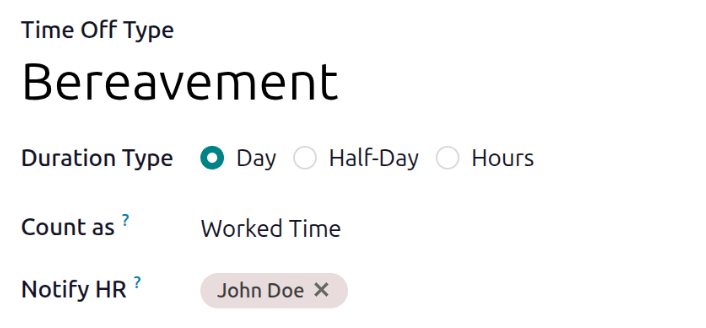
Time Off Type: Enter the name for the particular type of time off, such as
VacationorBereavement.Duration Type: Select the format the time off is requested in by clicking the corresponding radio button. The options are:
Day: Time off can only be requested in full-day increments (8 hours).
Half Day: Time off can only be requested in half-day increments (4 hours).
Hours: Time off can be taken in hourly increments.
Count as: Using the drop-down menu, select whether the time off type is counted toward accrual plans. Select Worked Time if the time off does count, select Absence if it does not count toward any type of accrual.
Notify HR: Select the user who is notified and responsible for approving requests and allocations for this specific type of time off. If this field is left blank, no one is notified.
Company: If multiple companies are created in the database, and this time off type only applies to one company, select the company from the drop-down menu. If this field is left blank, the time off type applies to all companies in the database. This field only appears in a multi-company database.
Country: If multiple countries are associated with the database, and this time off type is restricted to one country, select the country from the drop-down menu. If this field is left blank, the time off type applies to all countries. This field only appears in a multi-country database.
Time off requests section
This section determines how approvals are handled for time off requests for this time off type.
Select what specific kind of Approval is required for the time off type. The options are:
None Needed: No approvals are required when requesting this type of time off. The time off request is automatically approved.
By Time Off Officer: Only the specified time off officer, set on this form in the Notify HR field, is required to approve the time off request. This option is selected by default.
By Employee’s Approver: Only the employee’s specified approver for time off, which is configured in the Settings tab of the employee’s form, is required to approve the time off request.
By Employee’s Approver and Time Off Officer: Both the employee’s specified time off approver and the time off officer are required to approve the time off request.
Allocation requests section
This section determines how allocation requests are handled for this time off type.
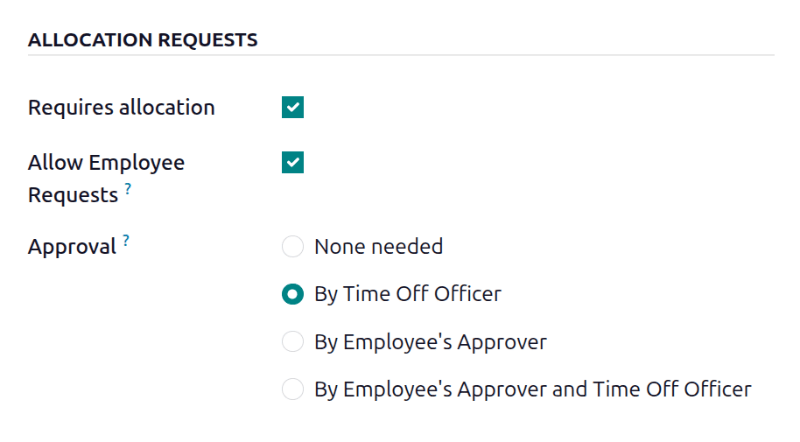
Requires allocation: If the time off must be allocated to employees, enable the checkbox. If the time off can be requested without time off being previously allocated, uncheck the box. If unchecked, no other options appear in the Allocation Requests section.
Allow Employee Requests: Check the checkbox if the employee should be able to request more time off than was allocated.
If employees should not be able to make requests for more time off than what was allocated, leave the box unchecked.
Example
Ten days are allocated to the employee for this particular type of time off, and the Allow Employee Requests option is enabled. The employee wants to take a vacation for twelve days. They may submit a request for two additional days, since the Allow Employee Requests option is enabled.
Important
It is important to note that requesting additional time off does not guarantee that time off is granted.
Approval: Select the type of approvals required for the allocation of this particular time off type.
None Needed: No approvals are required when requesting additional allocations for the time off type. The allocation request is automatically approved.
By Time Off Officer: Only the specified time off officer, set on this form in the Notify HR field, is required to approve the allocation request. This option is selected, by default.
By Employee’s Approver: Only the employee’s specified approver for time off, which is set on the Work Information tab on the employee’s form, is required to approve the allocation request.
By Employee’s Approver and Time Off Officer: Both the employee’s specified time off approver and the time off officer are required to approve the allocation request.
Configuration section
This section determines all other details regarding the time off type, aside from approvals and allocations.
Ignore Public Holidays: Enable this option if public holidays should not be included in time off requests.
Example
An employee in the United States requests time off for the week of July 4th, for a total of five days. Since the 4th of July is a holiday in the United States, the time off request is automatically modified to use four vacation days and one public holiday, instead of five vacation days. That is because the holiday is ignored, and the user does not need to use their own vacation time for a public holiday.
This option reduces extra work for users, enabling them to make only one time off request for the entire week, instead of making two separate requests, one for the days before the holiday, and another one for the days after the holiday.
Hide On Dashboard: Enable this option if this type of time off should not appear on the dashboard.
Require Supporting Document: Enable this option if the employee must attach documents to the time off request. This is useful in situations where documentation is required, such as long-term medical leave or jury duty.
Deduct Extra Hours: Enable this option if the time off request should factor in any extra time accrued by the employee.
Example
If an employee works two extra hours for the week, and requests five hours of time off, the two extra worked hours are counted toward the request. As a result, the time off request only uses three hours of the employee’s accrual.
Eligible for Accrual Rate: Enable this checkbox if the time off type is included when calculating worked time for an accrual plan. This is enabled by default.
Allow Request on Top: Enable this checkbox if the employee can request additional time off, stacked on top of this time off type.
Negative cap section
Enable the Allow Negative Cap option if employees should be able to request more time off than they currently have, allowing a negative balance. If enabled, an up to field appears. In this field, enter the maximum amount of negative time allowed, in days.
Example
Sara currently has three days of the Vacation time off type. She is planning a trip that
requires five days of time off.
The Vacation time off type has the Allow Negative Cap option enabled, and the
Maximum Excess Amount is set to five.
These settings allow Sara to submit a request for five days of the Vacation time off type. If
approved, her Vacation time off balance will be negative two (-2) days.
Payroll section
If the time off type should create Work entries in the Payroll app, specify the Work Entry Type from the drop-down list.
Display option section
Color: Select a color to be used in the Time Off app dashboard.
Cover Image: Select an icon to be used in the Time Off app dashboard.
