
Multi-package shipments
In some cases, a delivery order with multiple items may need to be shipped in more than one package. This may be necessary if the items are too large to ship in a single package, or if certain items cannot be packaged together. Shipping a single delivery order in multiple packages provides flexibility for how each item is packaged, without the need to create multiple delivery orders.
Configuration
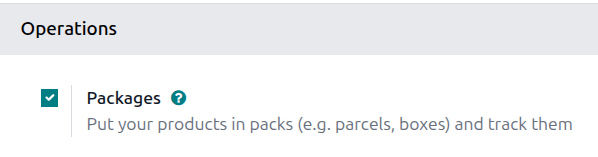
To split a delivery order across multiple packages, the Packages setting must be enabled. To do so, navigate to , then in the Operations section, select the Packages checkbox. Click Save to confirm the change.
Ship items in multiple packages
To split items in the same delivery order across multiple packages, begin by navigating to the app. On the Inventory Overview page, click the # to Deliver button on the Delivery Orders card. Finally, select a delivery order that has multiple items, multiple quantities of the same item, or both.
On the Operations tab, select the Details link for the product that will be shipped in the first package.
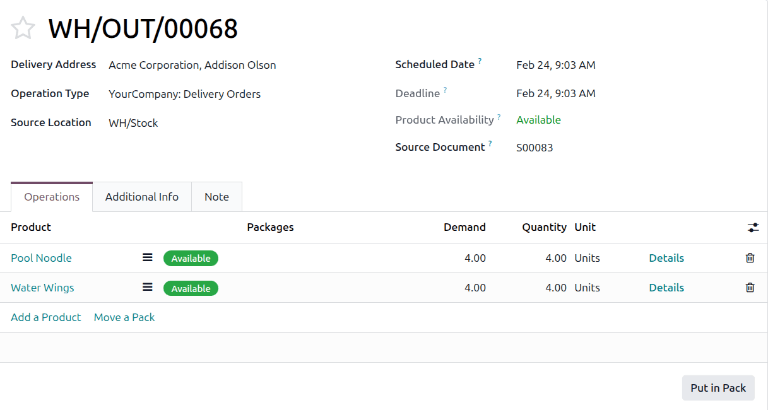
This opens the Detailed Operations pop-up window. In the table of the pop-up window, the Quantity column shows the total quantity of the product included in the delivery order.
If the full quantity will be shipped in the first package, enter the Demand quantity in the Quantity column. If less than the full quantity will be shipped in the first package, enter a smaller value than the Demand quantity. Then specify a Destination Package for the product.
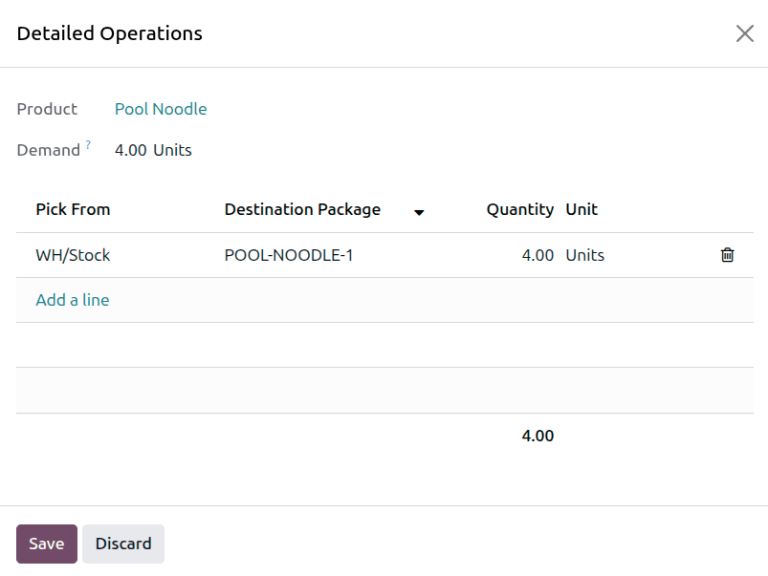
If the product is to be split into multiple packages, click the Add a line link and split the Quantity between the different Destination Package options that are created.
Click Save to confirm the packages and close the pop-up.
If packaging multiple products into the same package, repeat the same steps for every product in the package. Be sure to specify the same Destination Package in the Detailed Operations window.
For the next package, follow the same steps outlined above, marking the Quantity and Destination Package for each item to be included. Continue doing so until the full quantity of all products has been added to packages.
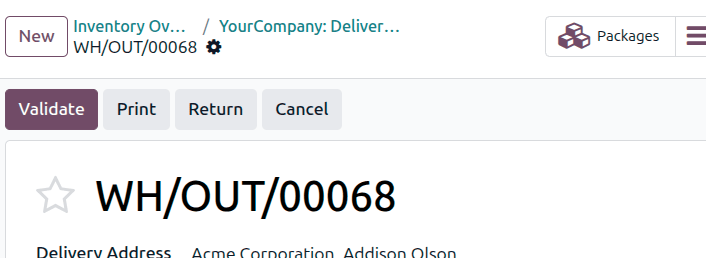
Finally, after all packages have been shipped, click Validate to confirm that the delivery order is complete.
Tip
After one or more packages are created, a Packages smart button appears above the delivery order. Click the Packages smart button to open the Packages page for the delivery order, where each package can be selected to view all its items.
Create a backorder for items to be shipped later
If some items will be shipped at a later date than others, there is no need to put them in a package until they are ready to ship. Instead, create a backorder for the items being shipped later.
Begin by shipping the items that will be shipped immediately. If they will be shipped in multiple packages, follow the steps in Ship items in multiple packages to package them as required. If they will be shipped in a single package, mark the Quantity and Destination Package for all of the products in that shipment.
After all quantities being shipped immediately are packaged, return to the delivery order form.
Change the Quantity for the backordered items to 0 or the partial quantity that is
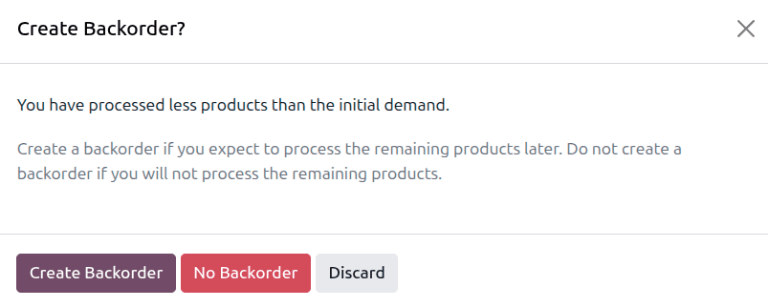
being shipped. Then, click the Validate button, and a Create Backorder? pop-up window
appears. Click the Create Backorder button. Doing so immediately confirms the items
being shipped and creates a new delivery order for the items that will be shipped later.
The backorder delivery order will be listed in the chatter of the original delivery order in a message that reads The backorder WH/OUT/XXXXX has been created. Click on WH/OUT/XXXXX in the message to view the backorder delivery order.

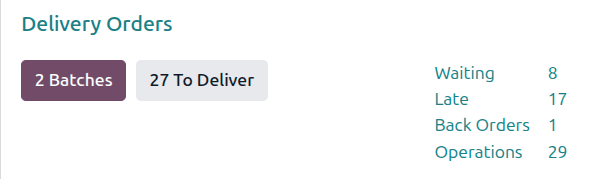
The backorder delivery order can also be accessed by navigating to , clicking the Back Orders # link on the Delivery Orders card, and selecting the delivery order.
When the remaining items are ready to be shipped, navigate to the backorder delivery order. The items can be shipped in a single package by clicking Validate, or shipped in multiple packages by following the steps detailed in the section above.
It is also possible to ship some of the items while creating a new backorder for the rest. To do so, follow the same steps used to create the first backorder.