Starshipit shipping
Starshipit is a shipping service operator that facilitates the integration of Australasian shipping couriers with NightPOS. Once integrated, users can create shipping methods that will automatically get rates from specific couriers (such as Australia Post, NZ Post, DHL,…) based on predefined conditions.
Setup in Starshipit
Create an account and activate couriers
To get started, go to Starshipit’s platform to configure the account and generate the connector credentials. Log in with the Starshipit account, or create a new one if needed.
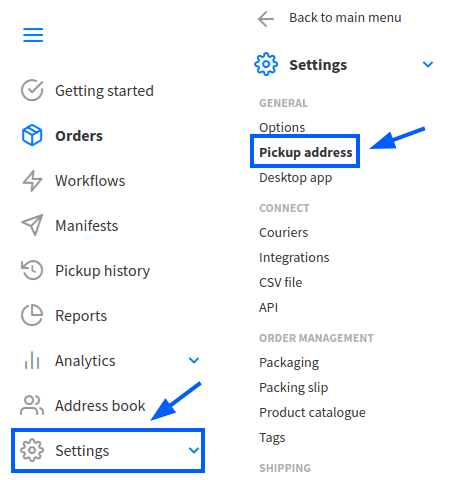
Pickup address configuration
Once logged into the Starshipit account, navigate to , and fill in the Pickup address. Ensure this field matches the warehouse address.
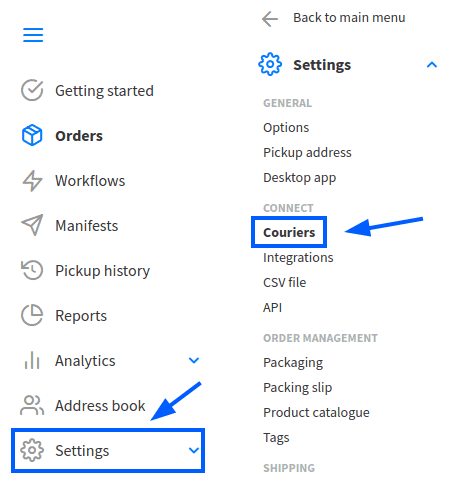
Couriers configuration
To integrate with third-party couriers, navigate to , and select Couriers.
Tip
For details on integrating with different couriers, refer to Starshipit’s support center.
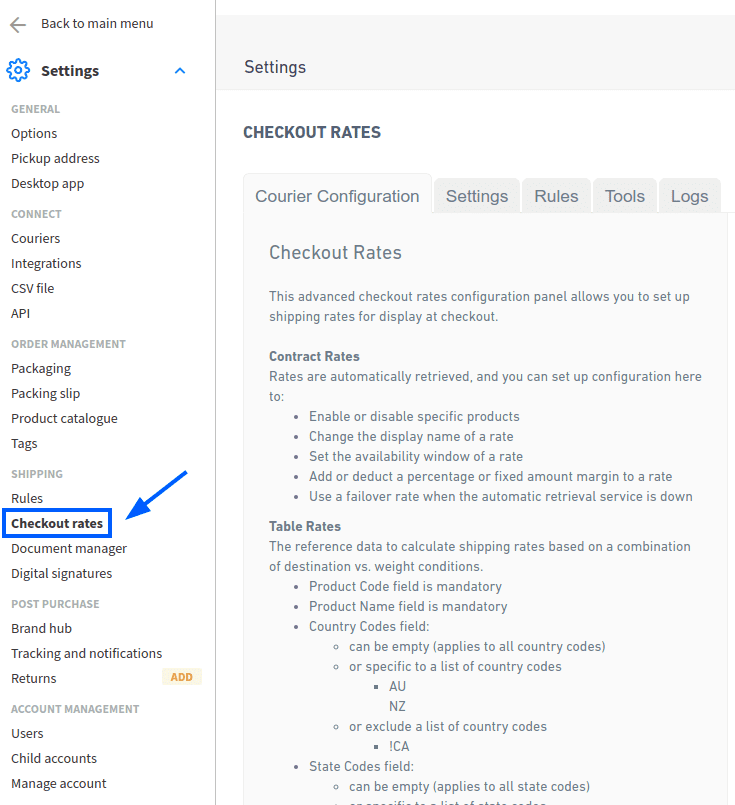
Checkout rates
To configure shipping rate calculations, navigate to . The selected delivery costs are automatically applied in NightPOS when calculating shipping costs.
Starshipit API key
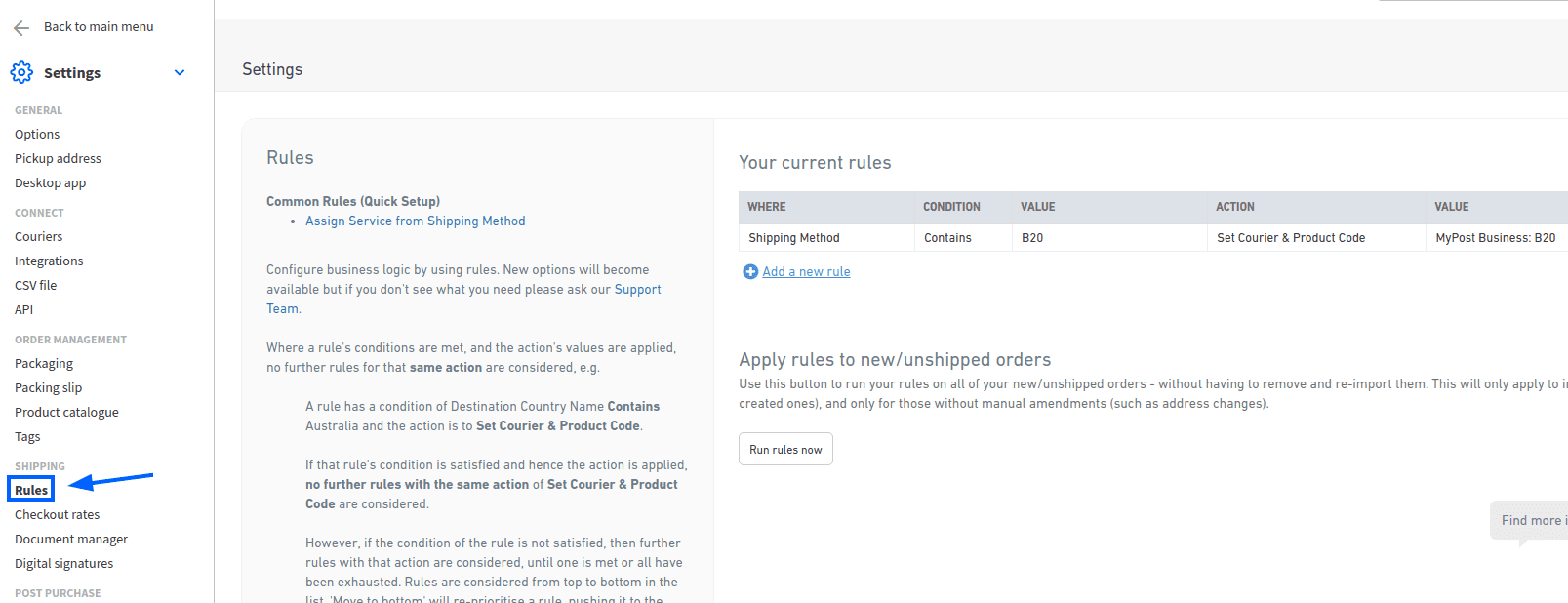
Configure shipping rules to assign the correct shipping methods to orders based on specific conditions.
To create a rule, go to and click Add a new rule.
While there are multiple ways to configure rules, it is recommended to set:
Condition to Contains
Value to the product code
Action to Set Courier & Product Code
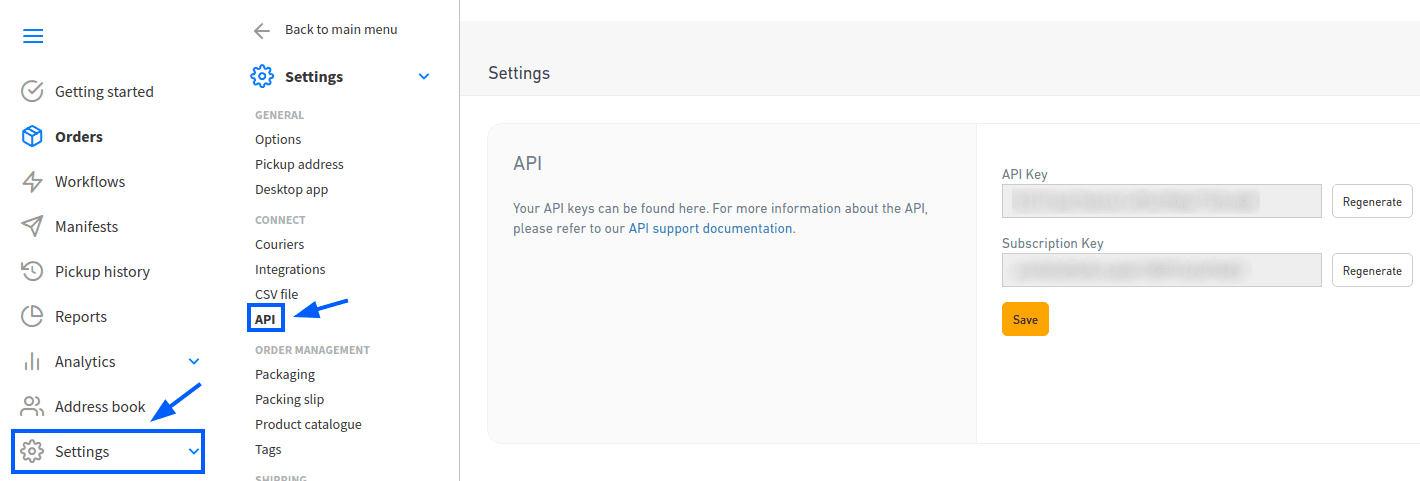
Finding Starshipit API credentials
In the Starshipit account, navigate to in the side menu. This page contains the API keys needed to connect to NightPOS.
Setup in NightPOS
Install the Starshipit module
After the Starshipit account is set up, integrate it with the NightPOS database. To do that, go to NightPOS’s Apps module, search for the Starshipit Shipping module, and click Activate to install it.
Configure a Starshipit delivery method
Once installed, activate the feature by going to . Under the Shipping Connectors section, activate the Starshipit Connector option.
After activating Starshipit Connector, click the Starshipit Shipping Methods link below the listed connector. Once on the Delivery Methods page, click Create.
Tip
Delivery Methods can also be accessed by going to .
Configure a Starshipit delivery method in NightPOS by filling out the fields on the Delivery Methods form as follows:
Delivery Method: type
Starshipit.Provider: select Starshipit from the drop-down menu.
Delivery Product: assign or create the delivery product that will appear on the sales order line when the cost of shipping is computed.
Note
The fields discussed in this section are specific to configuring Starshipit. For more information about the other fields, refer to Delivery methods.
In the Starshipit Configuration tab, fill out these fields:
Starshipit API Key: enter the API key obtained from Starshipit.
Starshipit Subscription Key: enter the subscription key obtained from the same place as the API key.
Origin Address: Enter the address where products are shipped from. This field is crucial for calculating shipping rates and generating shipping labels.
Default Package Type: Set a default package type to include the weight of the empty package when automatically calculating shipping rates.
Important
To set a default package type, the Packages feature must be enabled in .
Click the (Save manually) icon at the top of the page to save the changes.
To load the newly configured shipping products, click Select a service linked to your starshipit account at the bottom of the Starshipit Configuration tab, and a Choose Starshipit Shipping Service pop-up window appears. In the Delivery Service field, select the desired shipping service for deliveries and returns from the drop-down menu.
Note
The list of services shown during initial configuration may be incomplete. Starshipit determines service availability based on shipment details such as the destination address and package weight, which are not yet available at this stage. To select from the full list of services available for a specific order, use the Get more delivery methods option directly from the sales order. See Generate a label with Starshipit for details.
Click Confirm and the selected delivery service populates in the Shipping Method and Starshipit Service Code fields.
Example
Sample of a Starshipit shipping product configured in NightPOS:
Sendle DeliverySTANDARD-DROPOFF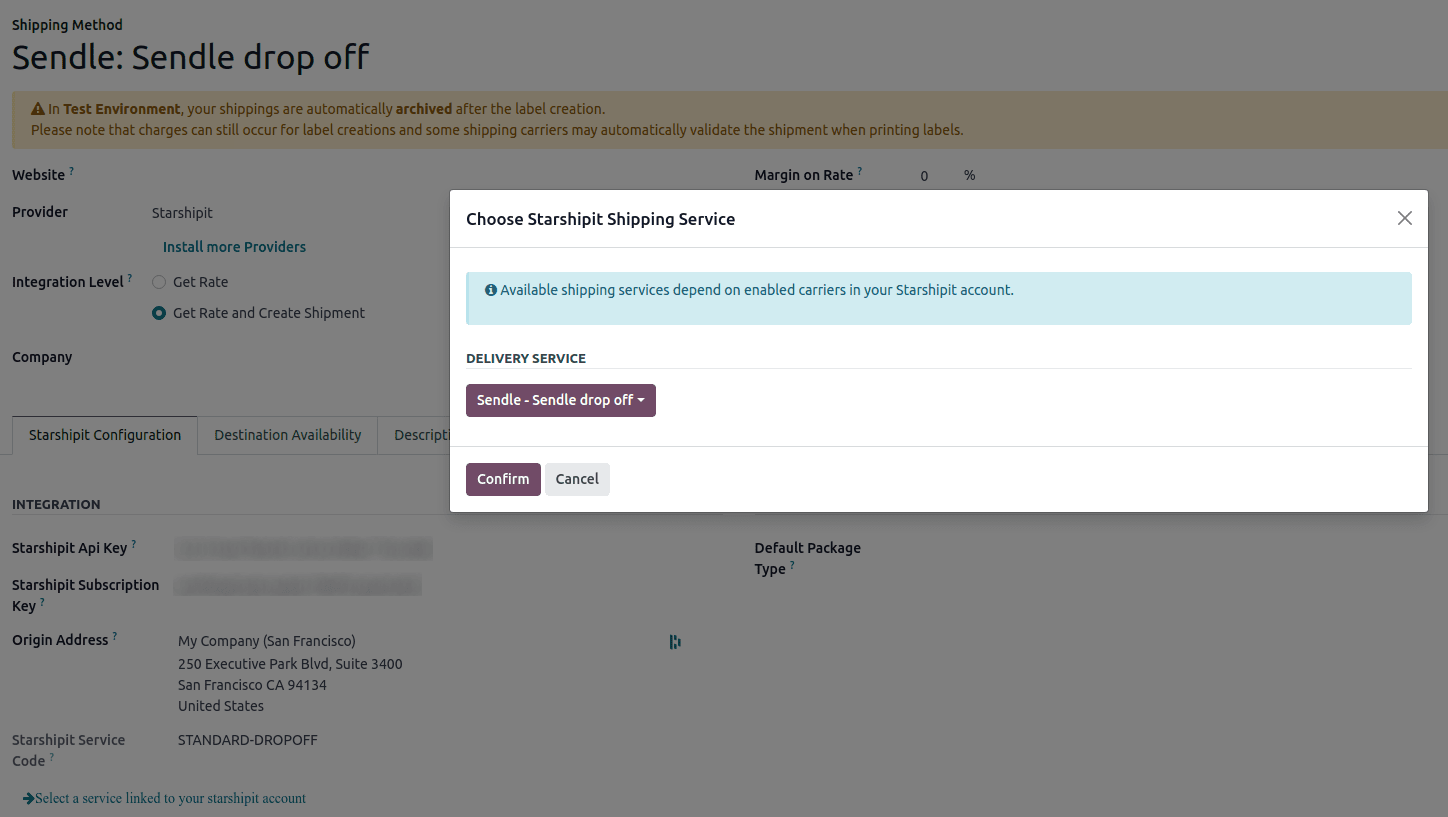
Tip
Starshipit does not provide test keys when a company tests the sending of a package in NightPOS. This means that if a package is created, the account may be charged.
NightPOS has a built-in layer of protection against unwanted charges when using test environments. Within a test environment, if a shipping method is used to create labels, then those labels are immediately cancelled after creation — this occurs automatically. Please note that depending on the shipping provider being used, the account might be charged for printing label, unless the order is cancelled manually on the couriers’s portal.
Switch between the test and production environment by clicking the Environment smart button at the top of the shipping method form.
Generate a label with Starshipit
When creating a quotation in NightPOS, add the Starshipit shipping method by clicking the Add shipping button.
Tip
In the Add a shipping method pop-up window, select a Starshipit shipping method in the Shipping Method field.
If the desired service is not available, click Get more delivery methods. This sends the actual order details (including the destination address, weight, and volume) to Starshipit, which returns the complete list of services available for that specific shipment. A new Starshipit delivery method is then created automatically and selected in the Shipping Method field.
Calculate the shipping rate by clicking Get rate. Finally, click Add to include the cost of shipping to the sales order line, labeled as the delivery product.
Note
Automatically calculate shipping costs for Starshipit in both NightPOS Sales and eCommerce applications.
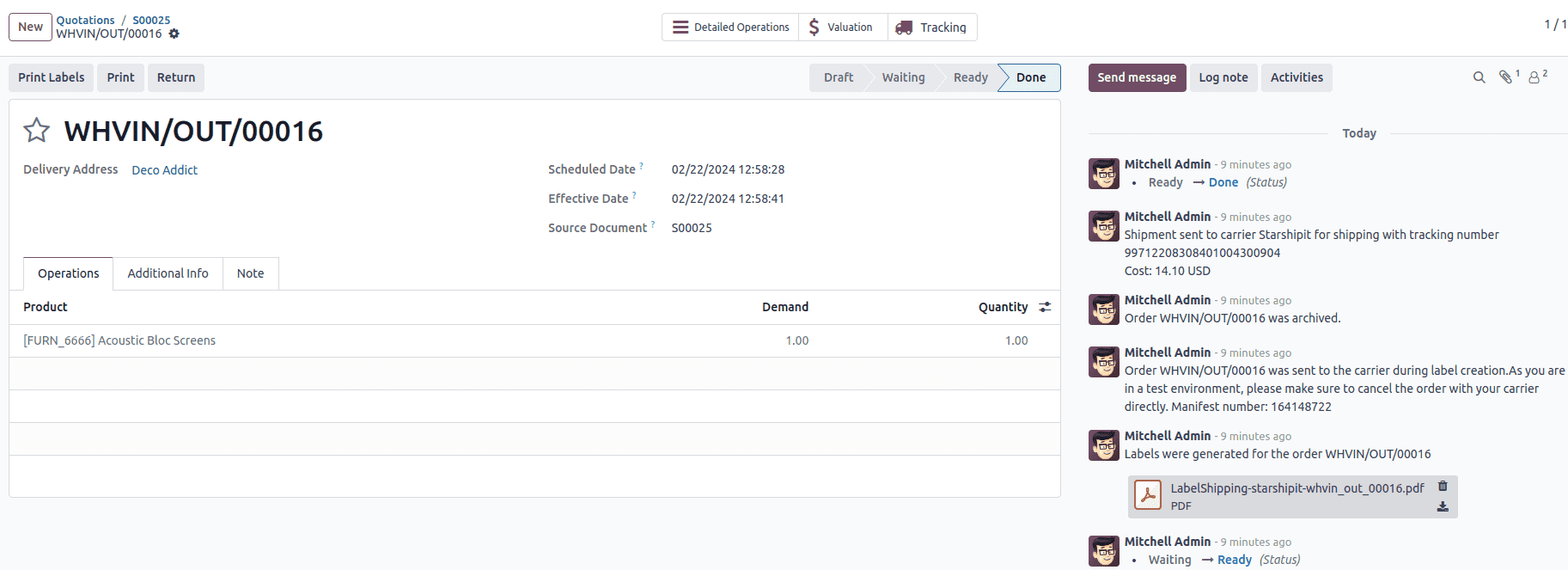
Then, Validate the delivery. Shipping label documents are automatically generated in the chatter, which includes the following:
Shipping label(s) depending on the number of packages.
Tracking number(s) if the selected courier supports it.
Return label(s) if the Starshipit connector is configured for returns.
Important
Package weight in NightPOS is calculated by adding the weights of the products plus the empty package saved in the database. Ensure the correct shipping option is selected, as the package weight is not automatically verified.
Verify the destination address, as Starshipit checks it when the order is created.
Finally, some couriers may require other information, such as an email address or phone number. Please ensure that all necessary information are set upon sending a shipping order.
Returns
- Starshipit allows returns with the following couriers:
Australia Post eParcel
TNT
Couriers Please
Aramex
StarTrack
DHL Express
NZ Post Domestic
This can be done by clicking the Return smart button on the intended delivery order. If the selected courier supports returns, the Print Return Label button will be available.
Cancellations
If a delivery order is cancelled in NightPOS, it will be automatically archived in Starshipit. However, the cancellation will not be sent to the courier itself, so make sure to log onto the courier’s platform to handle the cancellation manually.