การตั้งค่าแคมเปญ SMS
Utilizing SMS campaigns with NightPOS SMS Marketing isn't just an effective advertisement strategy, it's also a great way to remind people about upcoming events, issued invoices, and so much more.
แต่ก่อนที่จะสามารถสร้าง (และส่ง) แคมเปญ SMS ได้ ต้องเปิดใช้งานการตั้งค่าและคุณสมบัติเฉพาะบางอย่างก่อน
การตั้งค่าแคมเปญ SMS
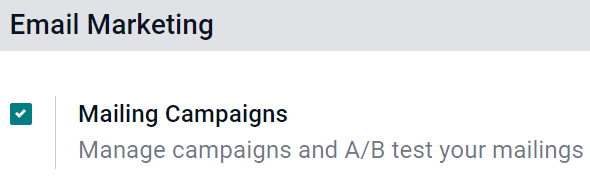
To enable SMS campaigns in NightPOS, make sure the Mailing Campaigns feature is activated by going to , and then enable Mailing Campaigns and Save the changes.
Note
การเปิดใช้งานคุณสมบัติ แคมเปญจดหมายข่าว ใน การตั้งค่าทั่วไป ยังเปิดใช้งานคุณสมบัติ การทดสอบ A/B ด้วย
เมื่อเปิดใช้งานการตั้งค่าแล้ว ให้กลับไปที่แอป และสังเกตว่าเมนูหัวข้อ แคมเปญ พร้อมใช้งานแล้ว ในทำนองเดียวกัน แท็บ การทดสอบ A/B ก็พร้อมใช้งานแล้วในทุกแบบฟอร์มเทมเพลต SMS
การทดสอบ A/B
การทดสอบ A/B ช่วยให้สามารถทดสอบการส่ง SMS กับเวอร์ชั่นอื่นๆ ภายในแคมเปญเดียวกันได้ เพื่อเปรียบเทียบว่าเวอร์ชั่นใดประสบความสำเร็จมากที่สุดในการสร้างการมีส่วนร่วมและ/หรือผลลัพธ์การแปลง
ในแบบฟอร์มเทมเพลต SMS ภายใต้แท็บ การทดสอบ A/B ในตอนแรกจะมีเพียงช่องทำเครื่องหมายเดียวที่มีข้อความว่า อนุญาตการทดสอบ A/B
เมื่อคลิก ตัวเลือกอื่นๆ จะปรากฏขึ้น
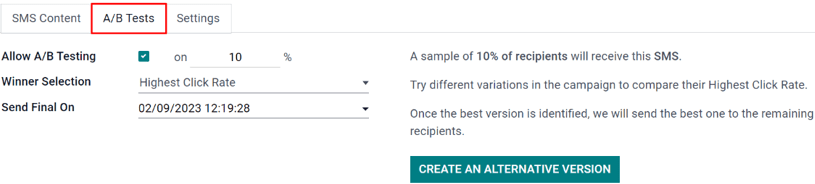
ในฟิลด์แรก ให้ป้อนเปอร์เซ็นต์ที่ต้องการของผู้รับเพื่อดำเนินการทดสอบ A/B
Beneath the percentage field is the Winner Selection field. This is what NightPOS will use to determine the successful result of an A/B Test. In other words, this tells NightPOS how to pick a winning A/B test.
ส่วนต่อไปนี้มีให้เลือก ด้วยตนเอง, อัตราการคลิกสูงสุด, โอกาสทางการขาย, ใบเสนอราคา หรือ รายได้
Finally, the Send Final On field is listed. This represents the date-time that NightPOS uses as a deadline to determine the winning mailing variation. Then, NightPOS sends that winning mailing variation to the remaining recipients, who weren't involved in the test, at that prior date and time.
Tip
สร้างเวอร์ชั่นต่างๆ ของการส่งอย่างรวดเร็วเพื่อเพิ่มในการทดสอบ A/B โดยคลิกปุ่ม สร้างเวอร์ชั่นทางเลือก
Note
โปรดจำไว้ว่า รูปแบบการส่งที่ชนะจะขึ้นอยู่กับเกณฑ์ที่เลือกในฟิลด์ การเลือกผู้ชนะ
หน้าแคมเปญ
หากต้องการสร้าง แก้ไข หรือวิเคราะห์แคมเปญใดๆ ให้คลิก ในเมนูส่วนหัวของแอป การตลาดผ่าน SMS ในหน้า แคมเปญ แต่ละแคมเปญจะแสดงข้อมูลต่างๆ ที่เกี่ยวข้องกับการส่งที่เกี่ยวข้องกับแคมเปญนั้น (เช่น จำนวนอีเมล, โพสต์โซเชียล, SMS และการแจ้งเตือนแบบพุช)
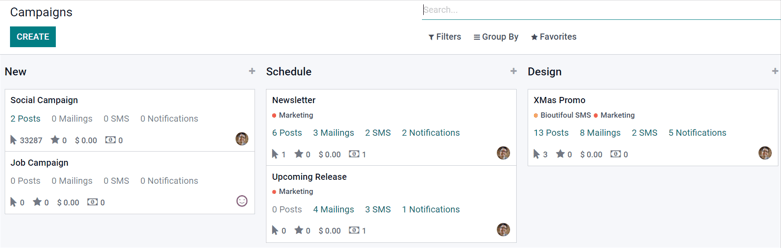
เทมเพลตแคมเปญ
Click Create to create a new campaign, and NightPOS reveals a blank campaign template form to fill out. Alternatively, select any previously-made campaign in order to duplicate, review, or edit its campaign template form.
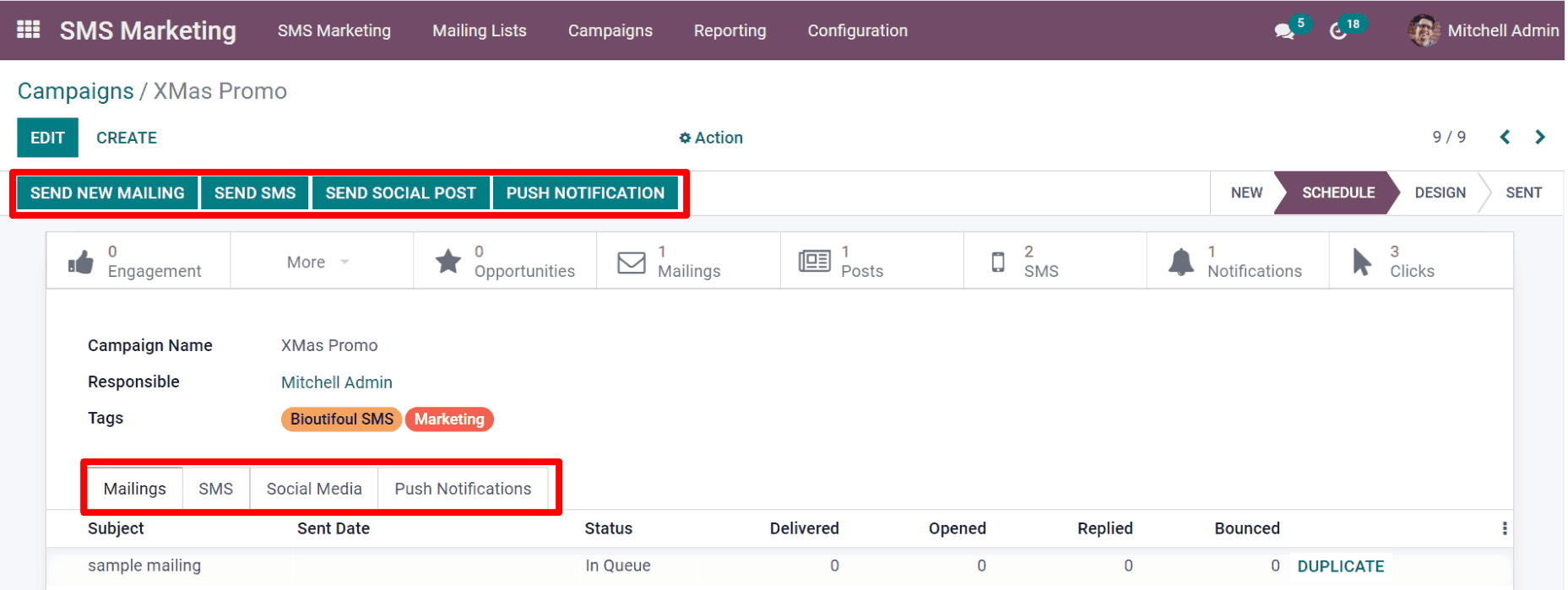
ในแต่ละแคมเปญ จะมีตัวเลือก ส่งจดหมายใหม่, ส่ง SMS, ส่งโพสต์โซเชียล และ การแจ้งเตือนแบบพุช ให้ใช้งานเหนือแบบฟอร์มเทมเพลต
Whenever one of those communication options is added to the campaign, NightPOS will create a new corresponding tab on the template form, where those types of messages can be reviewed or edited, along with various data sets related to each specific mailing.
At the top of the template, there are various analytical smart buttons. When clicked, NightPOS reveals in-depth metrics related to that specific topic (e.g. Engagement, Opportunities, etc.) on a separate page.
Beneath the smart buttons, are fields for Campaign Name and Responsible. NightPOS also allows for various Tags to be added, as well (if necessary).
การส่ง SMS ผ่านแอป รายชื่อผู้ติดต่อ
การส่งข้อความ SMS แบบจดหมายโดยตรงผ่านฟอร์มของผู้ติดต่อสามารถใช้งานได้ตามค่าเริ่มต้น
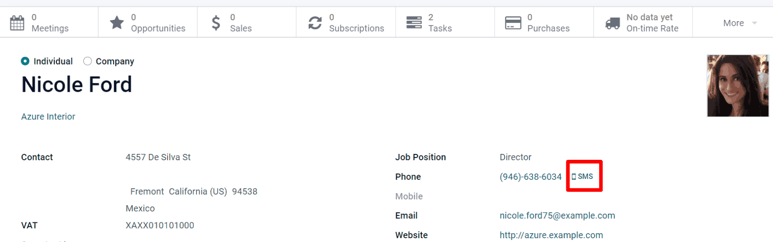
เพื่อส่ง SMS ในลักษณะนี้ ให้ไปที่แอป เลือกผู้ติดต่อที่ต้องการในฐานข้อมูล และคลิกที่ไอคอน SMS ในฟอร์มผู้ติดต่อ (ถัดจากฟิลด์ หมายเลขโทรศัพท์)
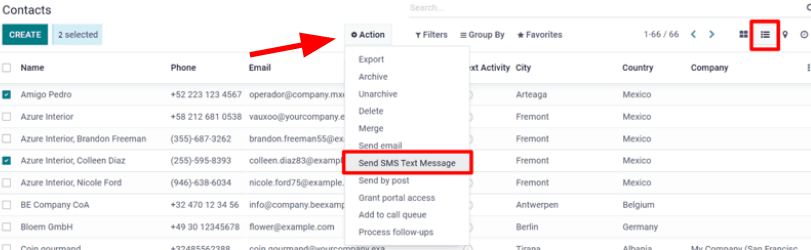
เพื่อส่งข้อความไปยังผู้ติดต่อหลายรายพร้อมกัน ให้ไปที่แดชบอร์ดหลักของแอป เลือก มุมมองรายการ และเลือกผู้ติดต่อที่ต้องการทั้งหมดที่จะส่งข้อความถึง จากนั้นภายใต้ การดำเนินการ ให้เลือก ส่ง SMS
ตั้งค่าเทมเพลต SMS เพื่อใช้ในอนาคต
In order to set up SMS Templates for future use, activate developer mode, by navigating to the main NightPOS dashboard that is full of apps, and select the . Then, scroll down to the Developer Tools section, and click Activate the Developer Mode.
Once developer mode is activated, the main NightPOS dashboard appears once more, with a now-visible bug icon, which is located at the top-right corner of the dashboard; this bug icon indicates that developer mode is currently active.
จากนั้นกลับไปที่ และในเมนูส่วนหัวที่มองเห็นได้ในขณะนี้ที่ด้านบน ให้เลือก เพื่อเริ่มตั้งค่าเทมเพลต SMS สำหรับแคมเปญการตลาดในอนาคต
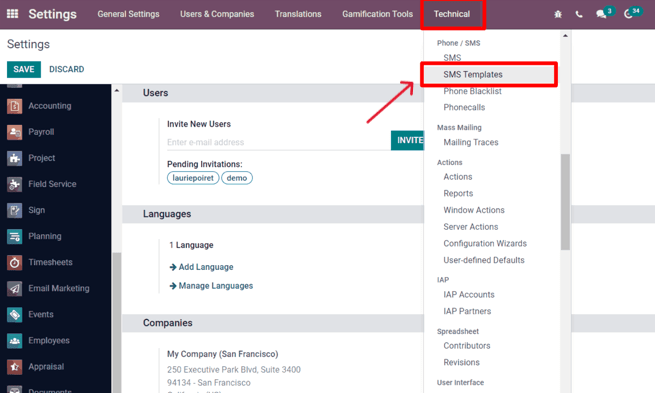
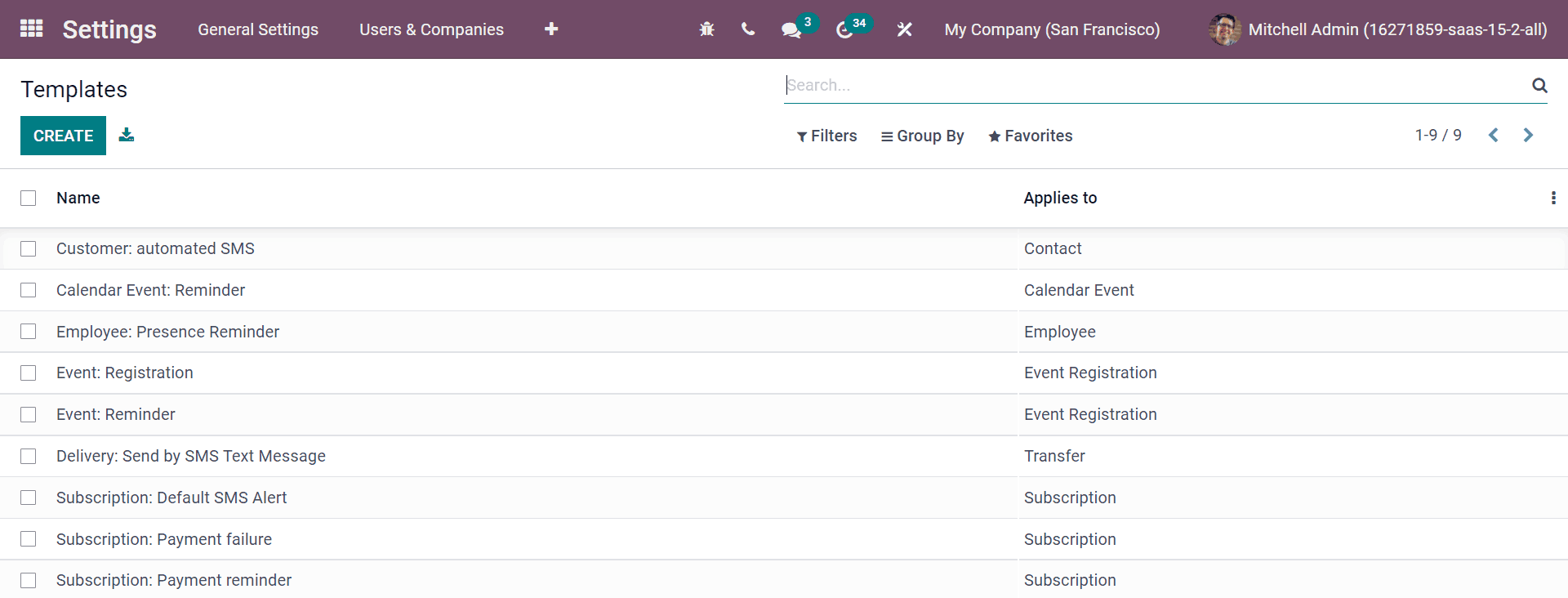
Inside of the SMS Templates dashboard, NightPOS reveals an entire page of SMS templates. The default List view showcases each template's name, and to which recipients it applies.
ในหน้านี้ เทมเพลต SMS สามารถแก้ไขหรือสร้างขึ้นใหม่ตั้งแต่ต้นได้