ตั้งค่าเครือข่ายการจัดส่งเนื้อหา (CDN)
การปรับใช้ด้วย KeyCDN
A CDN หรือ เครือข่ายการกระจายเนื้อหา เป็นเครือข่ายเซิร์ฟเวอร์ที่กระจายตามพื้นที่ทางภูมิศาสตร์ซึ่งให้บริการเนื้อหาอินเทอร์เน็ตความเร็วสูง CDN ให้การจัดส่งเนื้อหาที่รวดเร็วและมีคุณภาพสูงสำหรับเว็บไซต์ที่มีเนื้อหาจำนวนมาก
This document will guide you through the setup of a KeyCDN account with an NightPOS powered website.
สร้างโซนดึงในแดชบอร์ด KeyCDN
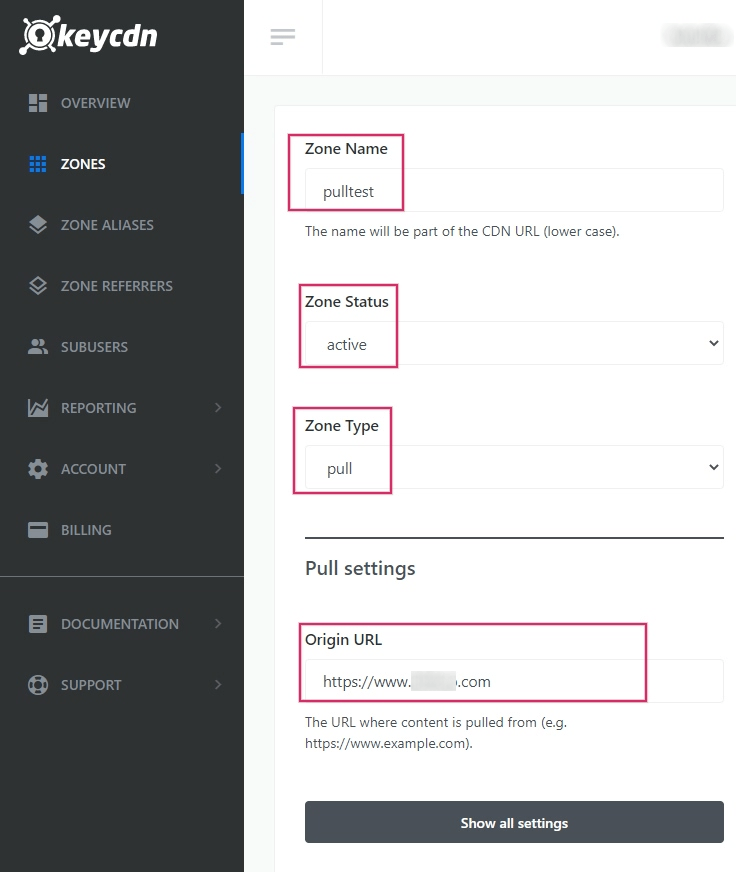
On the KeyCDN dashboard, start by navigating to the menu item on the left. On the form, give a value to the Zone Name, which will appear as part of the CDN's URL. Then, set the Zone Status to active to engage the zone. For the Zone Type set the value to Pull, and then, finally, under the Pull Settings, enter the Origin URL— this address should be the full NightPOS database URL.
Example
Use https://yourdatabase.nightpos.com and replace the yourdatabase subdomain prefix with the
actual name of the database. A custom URL can be used, as
well, in place of the NightPOS subdomain that was provided to the database.
ใต้หัวข้อ การตั้งค่าทั่วไป ใต้แบบฟอร์มโซน ให้คลิกปุ่ม แสดงการตั้งค่าทั้งหมด เพื่อขยายตัวเลือกโซน นี่ควรเป็นตัวเลือกสุดท้ายบนหน้า หลังจากขยาย การตั้งค่าทั่วไป ตรวจสอบให้แน่ใจว่าตัวเลือก CORS เป็น เปิดใช้งาน
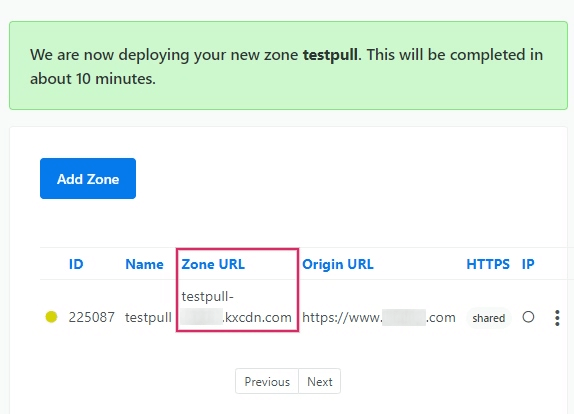
จากนั้น เลื่อนไปที่ด้านล่างของหน้าการกำหนดค่าโซนและ บันทึก การเปลี่ยนแปลง KeyCDN จะระบุว่าโซนใหม่จะถูกปรับใช้ การดำเนินการนี้อาจใช้เวลาประมาณ 10 นาที
Note
มีการสร้าง Zone URL ใหม่สำหรับโซนของคุณ ในตัวอย่างนี้คือ pulltest-xxxxx.kxcdn.com ค่านี้จะแตกต่างกันไปในแต่ละฐานข้อมูล
คัดลอกสิ่งนี้ URL โซน ไปยังโปรแกรมแก้ไขข้อความเพื่อใช้ในภายหลัง เนื่องจากจะถูกใช้ในขั้นตอนถัดไป
Configure the NightPOS instance with the new zone
In the NightPOS Website app, go to the and then activate the Content Delivery Network (CDN) setting and copy/paste the Zone URL value from the earlier step into the CDN Base URL field. This field is only visible and configurable when the developer mode is activated.
Note
ตรวจสอบให้แน่ใจว่ามี เครื่องหมายทับ (//) สองเครื่องหมายข้างหน้า URL ฐาน CDN และเครื่องหมายทับข้างหน้าหนึ่งเครื่องหมาย (/) หลัง URL ฐาน CDN
บันทึก การตั้งค่าเมื่อเสร็จสิ้น
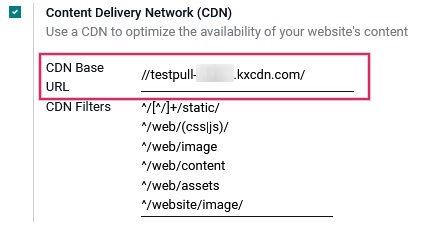
ขณะนี้เว็บไซต์กำลังใช้ CDN สำหรับทรัพยากรที่ตรงกับนิพจน์ทั่วไป ตัวกรอง CDN
In the HTML of the NightPOS website, the CDN integration is evidenced as working properly by checking the URL of images. The CDN Base URL value can be seen by using your web browser's Inspect feature on the NightPOS website. Look for it's record by searching within the Network tab inside of devtools.

ป้องกันปัญหาด้านความปลอดภัยด้วยการเปิดใช้งานการแบ่งปันทรัพยากรข้ามต้นทาง (CORS)
ข้อจำกัดด้านความปลอดภัยในเบราว์เซอร์บางตัว (เช่น Mozilla Firefox และ Google Chrome) ป้องกันไม่ให้ไฟล์ CSS ที่เชื่อมโยงจากระยะไกลดึงทรัพยากรที่เกี่ยวข้องบนเซิร์ฟเวอร์ภายนอกเดียวกันนี้
If the CORS option isn't enabled in the CDN Zone, the more obvious resulting problem on a standard NightPOS website will be the lack of Font Awesome icons because the font file declared in the Font Awesome CSS won't be loaded from the remote server.
เมื่อเกิดปัญหาทรัพยากรข้ามต้นทาง ข้อความแสดงข้อผิดพลาดด้านความปลอดภัยที่คล้ายกับผลลัพธ์ด้านล่างจะปรากฏในคอนโซลนักพัฒนาซอฟต์แวร์ของเว็บเบราว์เซอร์:
Font from origin 'http://pulltest-xxxxx.kxcdn.com' has been blocked from loading /shop:1 by
Cross-Origin Resource Sharing policy: No 'Access-Control-Allow-Origin' header is present on the
requested resource. Origin 'http://yourdatabase.nightpos.com' is therefore not allowed access.

การเปิดใช้งานตัวเลือก CORS ในการตั้งค่า CDN จะช่วยแก้ไขปัญหานี้ได้