
Going live
Once all the web design and development work finished, it's time to deploy it on a development or production database.
Module import
NightPOS SaaS
Follow these steps the first time you import a module:
Create a ZIP file of your module.
Connect to the project database.
Enable the developer mode.
Go to Apps, search for
base_import_module, and install it if necessary.Click on Import Module in the menu.
Upload your ZIP file, tick Force init, and click the Import App button.
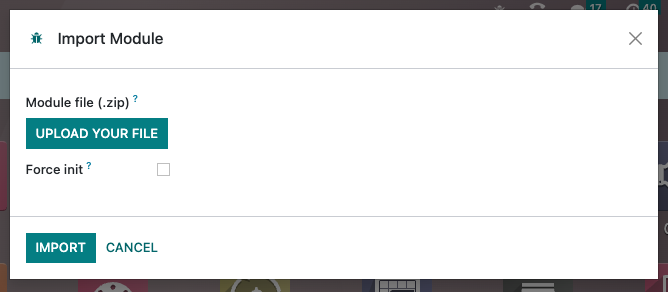
If you need to re-import a module after making some changes, follow the same steps, but before importing the module, open the developer menu and select Become Superuser. To leave the Superuser mode, log out and log back in.
Important
Don't forget to untick Force init if you import a module for the second time. Otherwise, existing data might be lost. (Related to noupdate=1).
The ZIP file size must be less than 50 MB.
ดูเพิ่มเติม
NightPOS.sh
Go to Apps and click on Update Apps List in the menu. Search for your module in the list and install it.
ดูเพิ่มเติม
What's next?
After importing and installing the module and before going live, make sure to check the SEO and redirects as well as your domain name.
ดูเพิ่มเติม
SEO & Redirects
Domain name